
Check out the answers to our most common questions below.
You can create an account during checkout or by visiting the My Account page. Just enter your email and create a password. Once your account is created, you’ll be able to access your past orders and download your resources anytime.
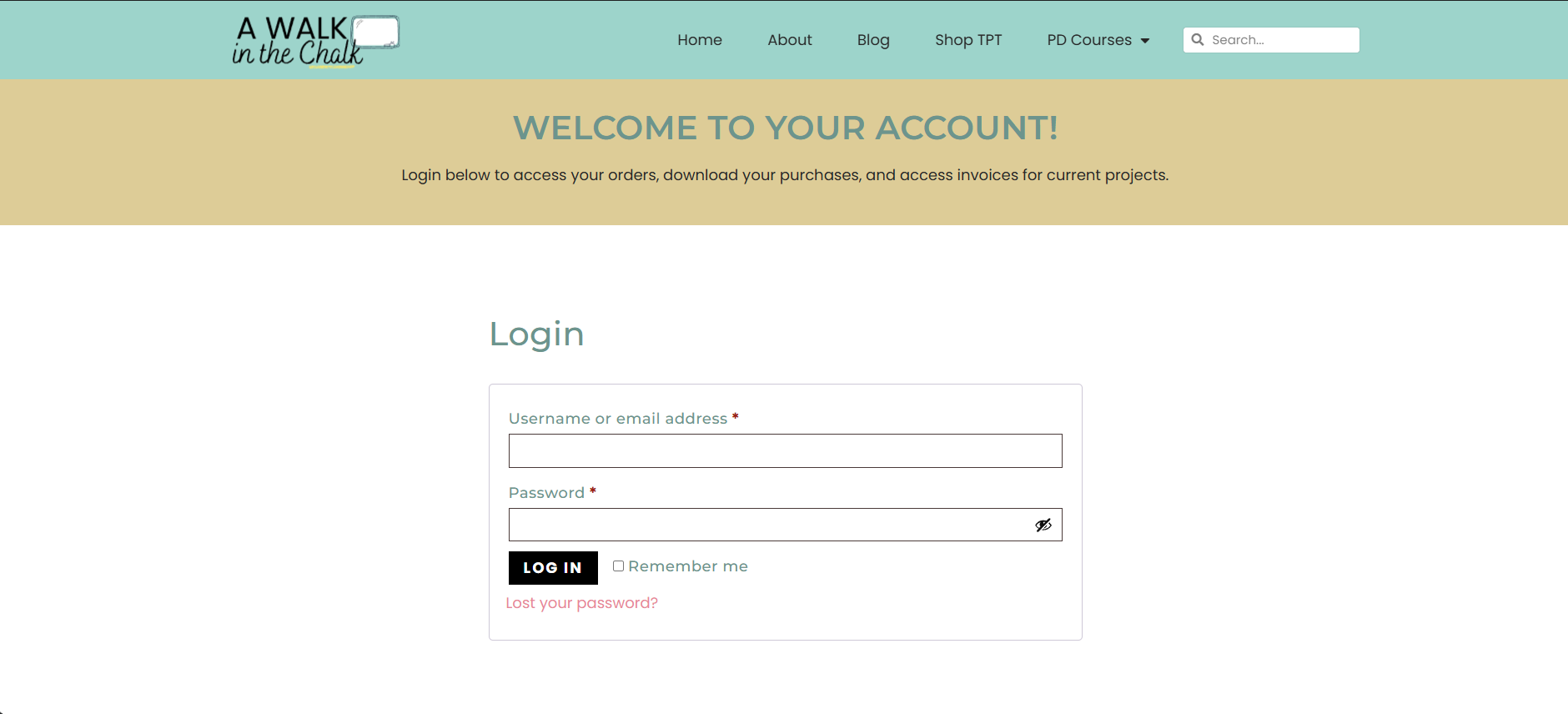
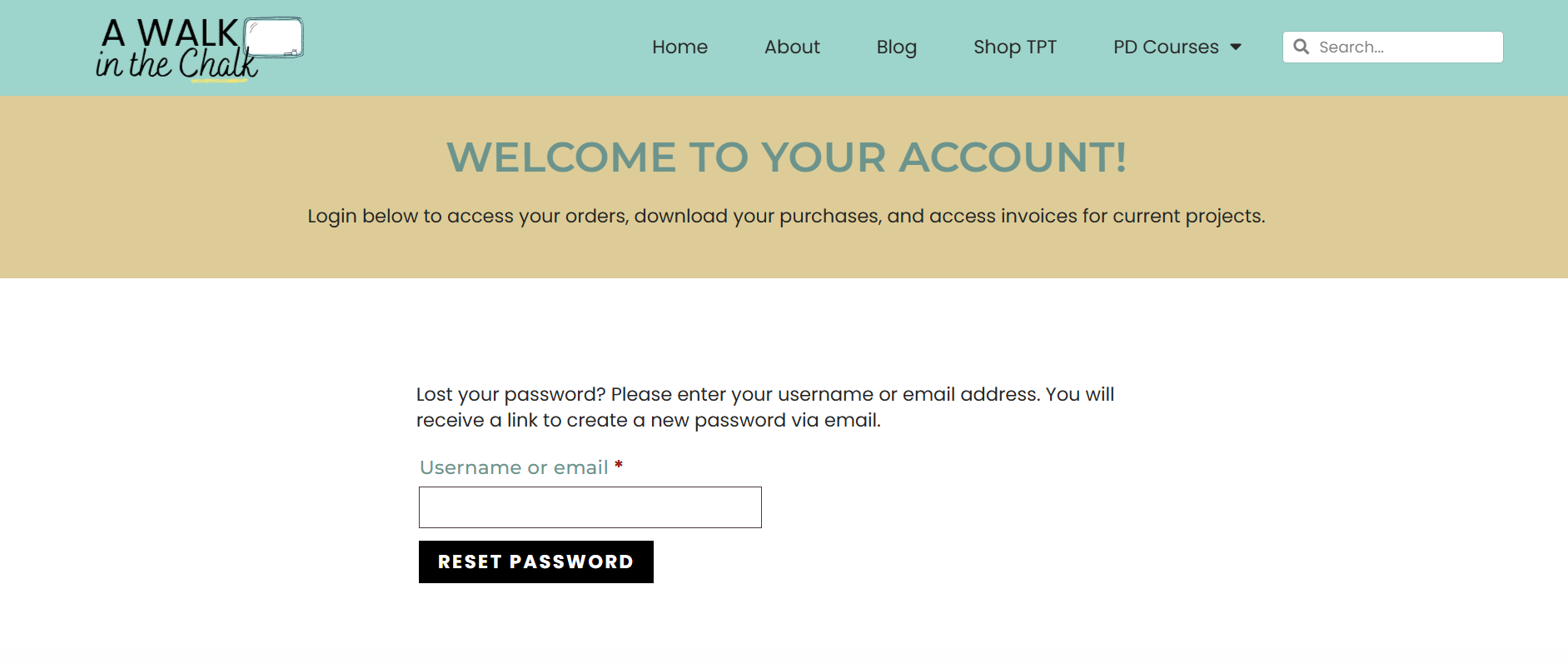
No worries! Go to the Login page and click “Reset password” under the login form. Enter your email address, and you’ll receive a link to reset your password in just a few minutes. Be sure to check your spam folder if you don’t see the email.
We accept major credit cards and PayPal at checkout. All payments are processed securely.
All resources are delivered electronically. Unlike a t-shirt or a book, you can’t (really) return a PDF or other file after it’s been downloaded. For that reason, all sales of digital resources are considered final and nonrefundable. If you made a duplicate purchase or purchased in error, please contact us with details here.
If you run into any issues with a file, please reach out—we’re happy to help resolve the problem.
Yes! Our store accepts international orders. As long as you have a valid credit card or PayPal account, you can purchase and download from anywhere in the world.
We know teachers love to collaborate, but resources are licensed for a single classroom or personal use only. Sharing beyond that goes against our Terms of Use.
Sharing includes things like emailing files, uploading them to shared drives, or sharing your account login. We appreciate your support in respecting copyright—if a colleague is interested in the resource, we’d love for you to share the link with them instead so they’re able to purchase their own copy. Thank you!
After checkout, you’ll receive an email with your order details. You can also log into your account anytime to download invoices and receipts from the Orders section.
After checkout, you’ll receive an email with a link to download your file. You can also log into your account anytime and head to the “Orders” section to download past purchases.
A .ZIP file is a compressed folder that contains one or more files inside. Many large or multi-part resources come in ZIP format to keep everything together.
To open your .ZIP file, make sure to hit Extract All before trying to open any files. It will create a new “unzipped” folder where you’ll be able to access your files.
To open your .ZIP file, make sure to hit Extract All before trying to open any files. It will create a new “unzipped” folder where you’ll be able to access your files.
That message means the .zip file’s name or the folder it’s in is too long for your computer to open. To fix it, follow these steps:
Yes! You can log into your account and re-download your resources anytime. Just visit the “Orders” page to access your files.
Check your spam, junk, or promotions folder. If it’s not there, log into your account and go to the “Orders” section to download your resources. Still stuck? Contact us here and we’ll help!
We recommend downloading on a desktop or laptop, especially for ZIP files or larger downloads. Mobile devices sometimes have trouble opening ZIP folders or PDFs properly.
Printing Tips for Best Results:
Save Before Printing
Always download and save the file to your computer before printing. Don’t print directly from your browser or a preview window—if you see a URL at the top of the page, you’re still in your browser.
Check the Background Color
If the background appears black, you’re still viewing the file in a web browser. Open the file in Adobe Reader, where the background will appear gray instead.
Open the File Correctly
Once downloaded, double-click to open the file. It should automatically launch in Adobe Reader. If it doesn’t, right-click the file name and select Open with > Adobe Reader.
Don’t Have Adobe Reader?
You can download the free version here: Adobe Reader – Free Download
Still Having Trouble?
Make sure your version of Adobe Reader is up to date. To check:
Open Adobe Reader
Click Help > Check for Updates in the top toolbar
If the File Still Won’t Print Correctly:
Try printing the PDF as an image:
Open the file in Adobe Reader
Click Print
Click Advanced
Select Print as Image, then click OK
Opening the file with the latest version of Adobe Acrobat Reader and printing from there usually solves most issues.
Double-check your printer settings. Make sure “Fit to Page” or “Shrink Oversized Pages” is selected, and ensure you’re printing from a downloaded copy of the file using Adobe Acrobat Reader. Also, confirm your printer has enough ink and paper.
This usually happens if the scaling or margin settings are off. In your print window, choose “Fit” or “Scale to Fit” instead of “Actual Size.” Also, try selecting “Print as Image” under advanced settings.
Most files are PDFs and not editable. If the resource includes editable sections, it will be clearly noted in the product description. Editable files usually require PowerPoint or Google Slides.
Use the “Fit”, “Fit to Page” or “Scale” setting that pops up when you hit print to ensure nothing gets cut off in your printer settings. To print multiple pages per sheet, adjust the layout under “More Options.” All resources are designed for 8.5 x 11 inch paper.
Some printing companies may require proof of permission before printing materials you didn’t create. If that happens, feel free to contact me.
If you’re still having trouble, I’m happy to help! Contact me here, and I’ll get back to you as soon as I can.